Setting up a few pages and the navigation menu will be a natural first step for most. Here’s how to!
While my post Intro to WordPress’ site editor was more general, here’s a simple step by step video tutorial on how to get started with a fresh WordPress installation with a Full Site Editing theme.
The tutorial uses a wordpress 6.4.1 installation with the twenty twenty four theme.
Jump directly to:
Step 1 – Create the header
Step 2 – Insert header into page template
Step 3 – Check other page templates
Step 4 – Creating a new page for the site
Step 1 – create the header
The first step is to create my header and navigation. To do so I have uploaded the site logo and created few pages. I have installed Woocommerce, so there are few pages created by Woocommerce too.
In the video you’ll see how I insert “Site Logo” and “Navigation” from the block editor (the blue plus-sign above left). I group the two and place them horisontally with space inbetween.
Step 2 – insert header into page template
The second step is the insert my new header into the default page template. You’ll notice how I was certain to name my header with a name I could find again (PK Header). I find the header with the block editor.
Step 3 – check other page templates
The next step is to verify that all the templates I will be using are using my new header. I create a blogpost (indlæg in Danish) and see that the header is different. The video will show how I edit the template for the single blogpost.
Step 4 – creating a new page for the site
It’s quite confusing that the term ‘page’ is being used both for an actual page that will be seem by a visitor to the site (like the front page or the about us page) as well as inside Appearance -> Editor!
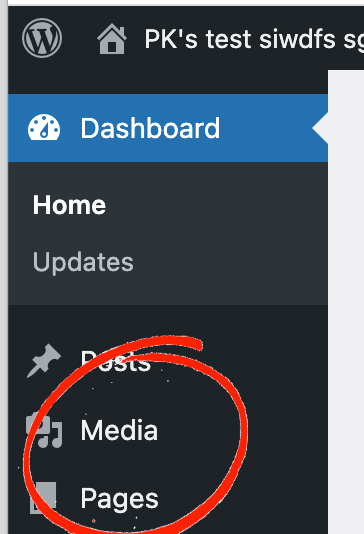
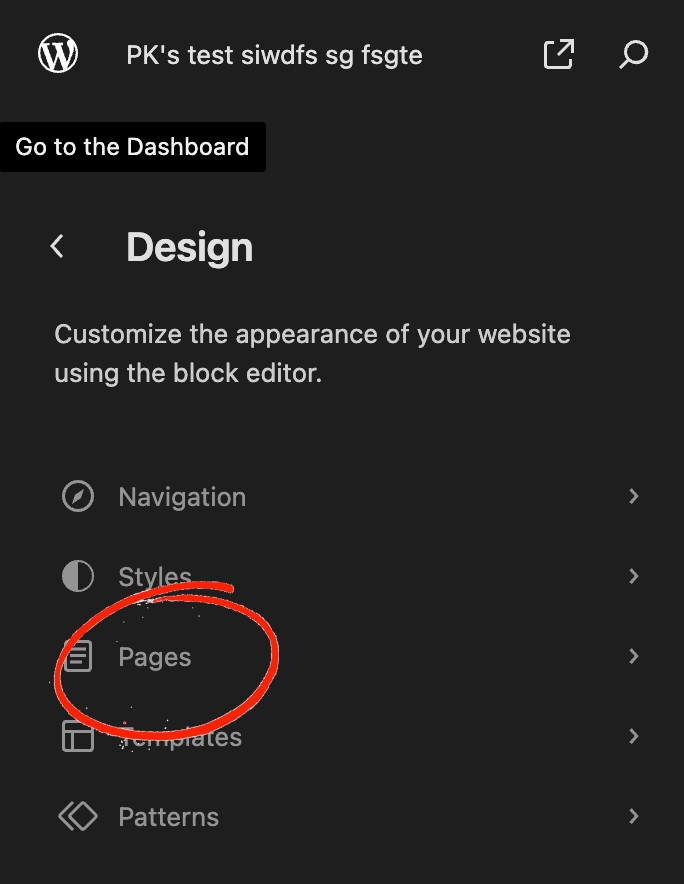
To crete a new page for the site just use “Pages” directly in the menu. You’ll have plenty of page designs available from the theme as well as from the Extendify plug-in (if installed)
Page templates from the editor that are available directly for new pages can be selected in the setting panel to the right:
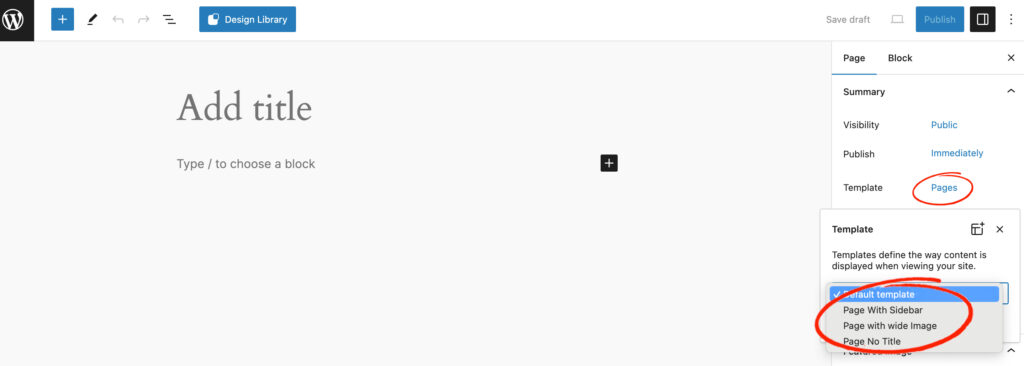
The other pages from the editor are primarily available for other functions of WordPress like the blog-section, pages for Woocommerce etc.
Thirst for more posts related to WordPress? See all posts tagged with WordPress